Quick Start
This 5-minute tutorial will walk you through launching your first GPU instance, connecting via SSH, and stopping the instance.
Prerequisites
Before starting this tutorial, make sure you've completed:
- Prerequisites - Lambda Labs account setup
- Installation - Soong CLI installed
- Configuration - CLI configured with credentials
Step 1: Browse Available Models
First, let's see what models are available:
Expected Output:
Available models (showing 10 of 150):

Name                                    VRAM Required
--------------------------------------  --------------
meta-llama/Llama-2-7b-hf               14 GB
mistralai/Mistral-7B-v0.1              14 GB
meta-llama/Llama-2-13b-hf              26 GB
deepseek-ai/DeepSeek-R1                160 GB
meta-llama/Meta-Llama-3-70B            140 GB
...
Model Recommendations
Use soong models --recommend <model-name> to get instance type recommendations based on VRAM requirements.
Example:
Output:
Model: meta-llama/Llama-2-7b-hf
Estimated VRAM: 14 GB

Recommended instance types:
✓ gpu_1x_a10 (24GB VRAM) - $0.60/hr
✓ gpu_1x_a100 (40GB VRAM) - $1.10/hr
✓ gpu_1x_h100_pcie (80GB VRAM) - $2.99/hr
Step 2: Start a GPU Instance
Launch a GPU instance with your chosen model:
What happens:
- Soong CLI requests an instance from Lambda Labs
- Lambda Labs provisions the GPU instance
- The instance boots and becomes accessible
- SSH tunnels are automatically configured
- Your persistent filesystem is mounted (if configured)
Expected Output:
Starting GPU instance...
Instance type: gpu_1x_a10 (using default)
Region: us-west-1 (using default)
Max runtime: 2 hours (using default)

✓ Instance started successfully!

Instance Details:
  ID: i-abc123def456
  Type: gpu_1x_a10
  Status: running
  IP: 203.0.113.42
  Cost: $0.60/hour

SSH Tunnels:
  Local Port 8000 → Instance Port 8000 (SGLang)
  Local Port 5678 → Instance Port 5678 (n8n)
  Local Port 8080 → Instance Port 8080 (Status Daemon)

To connect: soong ssh
To check status: soong status
To stop: soong stop
Instance Startup Time
Instances typically take 30-60 seconds to become fully ready. You'll see a "running" status once it's accessible.
Customize Instance Launch
You can override defaults with command-line flags:
# Specify instance type
soong start --model meta-llama/Llama-2-7b-hf --instance-type gpu_1x_a100

# Set max runtime to 4 hours
soong start --model meta-llama/Llama-2-7b-hf --max-hours 4

# Combine multiple options
soong start \
  --model deepseek-ai/DeepSeek-R1 \
  --instance-type gpu_1x_h100_pcie \
  --max-hours 6 \
  --region us-east-1
Step 3: Check Instance Status
View your running instance details:
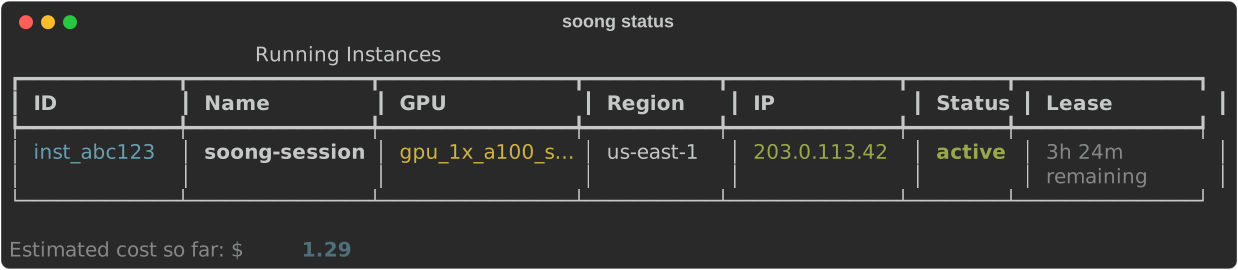
Expected Output:
Instance Status:
  ID: i-abc123def456
  Type: gpu_1x_a10
  Status: running
  Model: meta-llama/Llama-2-7b-hf

Runtime:
  Uptime: 5 minutes
  Max runtime: 2 hours
  Time remaining: 1 hour 55 minutes

Cost:
  Hourly rate: $0.60/hr
  Current cost: $0.05
  Estimated total (at 2hr): $1.20

Network:
  IP: 203.0.113.42
  SSH tunnels: Active

Ports:
  8000 (SGLang): Available at localhost:8000
  5678 (n8n): Available at localhost:5678
  8080 (Status): Available at localhost:8080
Step 4: Connect via SSH
SSH into your running instance:
What happens:
1. Soong CLI connects using your configured SSH key
2. You're logged into the instance as the default user
3. Your persistent filesystem is mounted at /home/ubuntu/workspace (if configured)
Expected Output:
Connecting to instance i-abc123def456 (203.0.113.42)...

Welcome to Ubuntu 22.04.3 LTS (GNU/Linux 5.15.0-1048-aws x86_64)

 * Documentation:  https://help.ubuntu.com
 * Management:     https://landscape.canonical.com
 * Support:        https://ubuntu.com/advantage

ubuntu@lambda-instance:~$
Verify GPU Access
Once connected, verify GPU access:
Expected Output:
+-----------------------------------------------------------------------------+
| NVIDIA-SMI 535.54.03    Driver Version: 535.54.03    CUDA Version: 12.2   |
|-------------------------------+----------------------+----------------------+
| GPU  Name        Persistence-M| Bus-Id        Disp.A | Volatile Uncorr. ECC |
| Fan  Temp  Perf  Pwr:Usage/Cap|         Memory-Usage | GPU-Util  Compute M. |
|===============================+======================+======================|
|   0  NVIDIA A10          Off  | 00000000:00:1E.0 Off |                    0 |
|  0%   32C    P0    52W / 150W |      0MiB / 24576MiB |      0%      Default |
+-------------------------------+----------------------+----------------------+
Exit SSH Session
To return to your local machine:
Step 5: Access Services via SSH Tunnels
Soong CLI automatically sets up SSH tunnels to common ports. You can access these services from your local machine:
SGLang Inference Server (Port 8000)
n8n Workflow Automation (Port 5678)
Open in your browser:
Instance Status Daemon (Port 8080)
Tunnel Management
SSH tunnels are automatically created when you start an instance. Use soong tunnel to manually manage tunnels if needed.
Step 6: Extend Runtime (Optional)
If you need more time before the instance auto-stops:
Expected Output:
Extended instance runtime by 2 hours.

New Details:
  Current uptime: 45 minutes
  New max runtime: 4 hours
  Time remaining: 3 hours 15 minutes
  New estimated cost (at 4hr): $2.40
Step 7: Stop the Instance
When you're done, stop the instance to avoid additional charges:
Expected Output:
Stopping instance i-abc123def456...

✓ Instance stopped successfully!

Final Summary:
  Total runtime: 1 hour 23 minutes
  Total cost: $0.83

Instance data has been saved to your persistent filesystem.
Data Loss Warning
If you're NOT using a persistent filesystem, all data on the instance will be lost when stopped. Make sure to copy any important files before stopping.
Complete Example Workflow
Here's a complete workflow from start to finish:
# 1. Check available models
soong models --limit 5

# 2. Get recommendations for a specific model
soong models --recommend meta-llama/Llama-2-7b-hf

# 3. Start instance with the model
soong start --model meta-llama/Llama-2-7b-hf

# 4. Check status
soong status

# 5. SSH into instance
soong ssh

# (Inside instance) Verify GPU
nvidia-smi

# (Inside instance) Do your work...
python train_model.py

# (Inside instance) Exit SSH
exit

# 6. (Optional) Extend runtime if needed
soong extend --hours 1

# 7. Stop instance when done
soong stop
What's Next?
Now that you've launched your first instance, explore more features:
- Command Reference: Detailed documentation for all commands
- Configuration Reference: Advanced configuration options
- Model Management: Working with different models
- Cost Optimization: Tips for reducing GPU costs
Common Questions
How much does this cost?
Costs depend on the instance type and runtime:
| Instance Type | VRAM | Cost/Hour | 2hr Session |
|---|---|---|---|
| gpu_1x_a10 | 24GB | $0.60 | $1.20 |
| gpu_1x_a100 | 40GB | $1.10 | $2.20 |
| gpu_1x_h100_pcie | 80GB | $2.99 | $5.98 |
See soong available for current pricing.
What happens if I forget to stop an instance?
If you set --max-hours, the instance automatically stops when the time limit is reached. Without a time limit, the instance runs indefinitely until manually stopped.
Set a Max Runtime
Always use --max-hours to prevent unexpected costs from forgotten instances.
Can I resume a stopped instance?
No, stopped instances cannot be resumed. You'll need to start a new instance. However, if you use a persistent filesystem, your data is preserved.
How do I save my work between sessions?
Use a persistent filesystem (configured during setup). Any data stored in /home/ubuntu/workspace persists across instances.
Congratulations!
You've successfully launched and managed your first GPU instance with Soong CLI!